4 minute read · Ultimo Research Desk · Reviewed 5 Sept 2026
How to export your trade history and account statement from MetaTrader 5
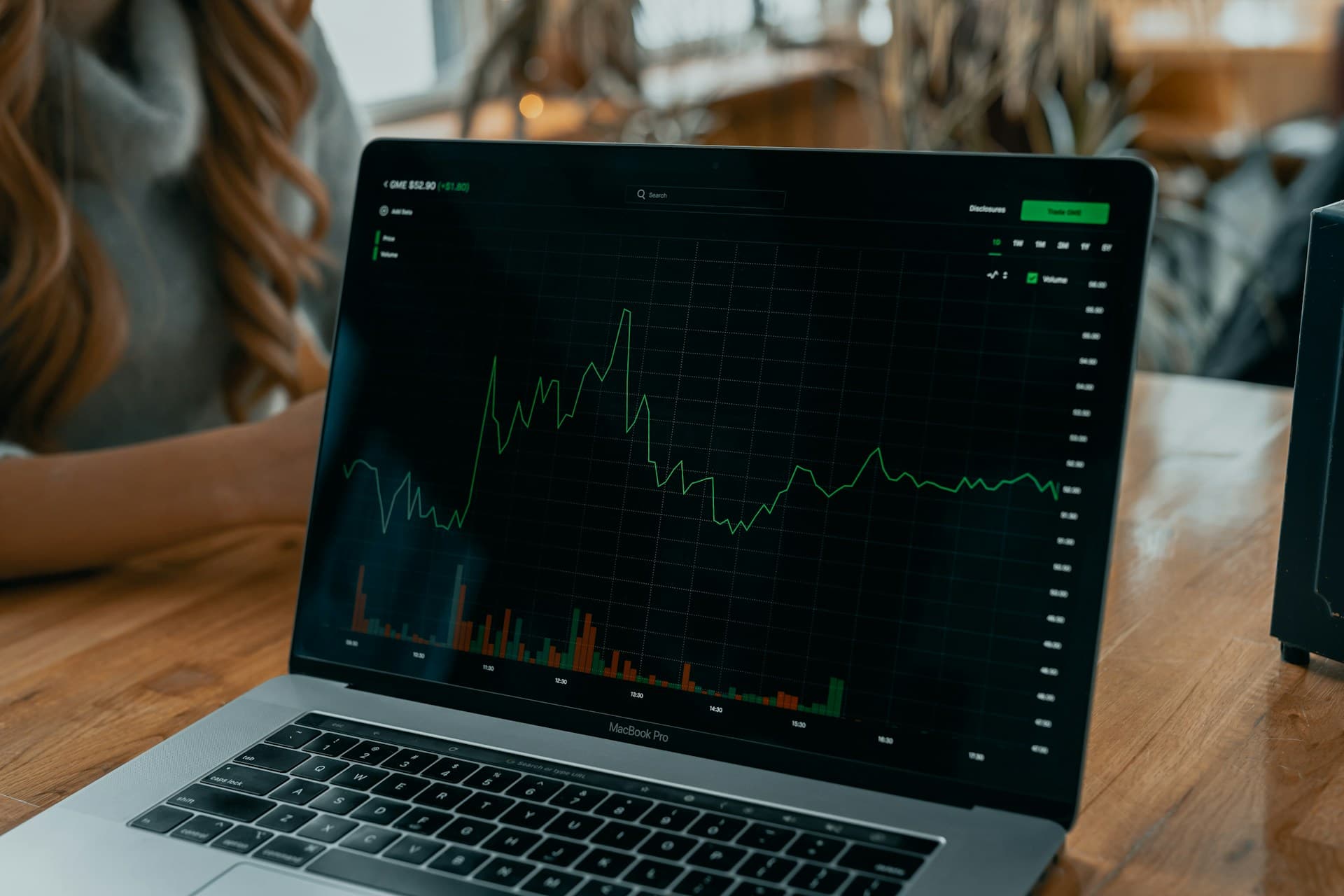
You can filter an account's orders, deals or positions in MetaTrader 5 and save a trading report as an HTML or PDF file from the desktop terminal. You need to be logged in to the account whose history you want to export; the mobile and web terminals can display history, but the documented report-saving workflow is a desktop function.
Before you start
Confirm the account number and the time zone used by the trade server. In desktop history, deal times are shown according to the broker's trading-server time. Decide whether you need orders, executed deals, positions or a report that combines the history with summary statistics. These are different views of the same activity.
The history is account-specific. If you change account, reopen the report so that it is generated from the new account. MetaQuotes documents the history views and the report in its desktop trading help.
On desktop
- Open the
Toolboxwindow and select theHistorytab. - Select the required history period using the date or period control in the history area.
- Choose the required history representation:
Orders,Deals,Positionsor the available tree view. - Filter by symbol if the history control provides a symbol filter. Check the displayed volume unit before interpreting the rows.
- Review the records.
Ordersare requests sent to the server.Dealsare executed transactions.Positionscombine related deals into a position record. - Open the context menu of the trading history section and select
Report→Overview, or useReportsin theViewmenu. - Wait while MetaTrader 5 builds the report. The report is based on the selected account history and can require historical price data for some calculations.
- Review the report tabs, including
Summary,Profit/Lost,Long/Short,SymbolsandRiskswhere available. - Use the report's save command to save it as
HTMLorPDF, then choose the destination offered by the terminal.
The history list itself includes fields such as time, deal ticket, order ticket, symbol, type, direction, volume, price, Stop Loss, Take Profit, commission, fee and profit where applicable. A single order can produce several deals. A position view uses related deals and weighted average opening and closing prices.
In the web terminal
- Open the web terminal's history or account activity area.
- Select the available date range and history view.
- Review the displayed orders, deals or positions.
The web terminal supports access to account trading history, but the desktop Reports workflow and its HTML/PDF save controls are not necessarily available in the web layout. If an export control is not displayed, use the desktop terminal for the report file.
On mobile
- Open
History. On iPhone, use the bottom panel. On Android, open the side panel and tapHistory. - Select
Orders,DealsorPositionsat the top of the screen. - Tap the period or customise control and select the symbol,
Fromdate andTodate where those controls are shown. - Tap
Doneand review the filtered records. - Tap an order or deal line to see its details, including ticket, volume, price, time, direction, commission, swap and profit where applicable.
The iPhone and Android layouts differ. The mobile help documents viewing and filtering history, but it does not provide the desktop report-save workflow. Use the desktop terminal when you need an HTML or PDF account statement.
What happens next
The saved report contains a summary of the selected history and can include account results, deposits and withdrawals, balance, deal statistics, symbol analysis and risk graphs. The contents depend on the period, available history and report version. A report is not a live account line: it reflects the account and period used when it was generated.
When positions are selected, MetaTrader 5 includes a position if its opening date or closing date falls within the selected period. A position opened before the period and closed after it may not appear in that position view. Check the Deals view when you need the individual executions.
Common problems
- The report is empty: the wrong account or date range is selected, or no records match the filter. Confirm the login and period.
- A deal is missing from the position view: the selected period includes neither the position's opening date nor its closing date. Use the
Dealsview or widen the period. - The report takes time to open: MetaTrader 5 is loading historical prices for floating-profit or drawdown calculations. Wait for the calculation to finish.
- The saved file is not where expected: use the destination shown by the save dialog and check the file type selected.
- Desktop and mobile totals differ: the views may use different periods, time zones or history modes. Match the account, dates and mode before comparing.
Related
Next: How to read the account line in MetaTrader 5.
If you cannot complete the step, contact support with the symbol, the order type and a screenshot of the message MetaTrader 5 shows.
Written by the Ultimo Research Desk and checked against our own contract specifications and client agreement before publication; reviewed again when those change. Educational only — nothing here is a recommendation to trade. Spotted an error? Tell us.