4 minute read · Ultimo Research Desk · Reviewed 5 Sept 2026
How to set price alerts in MetaTrader 5
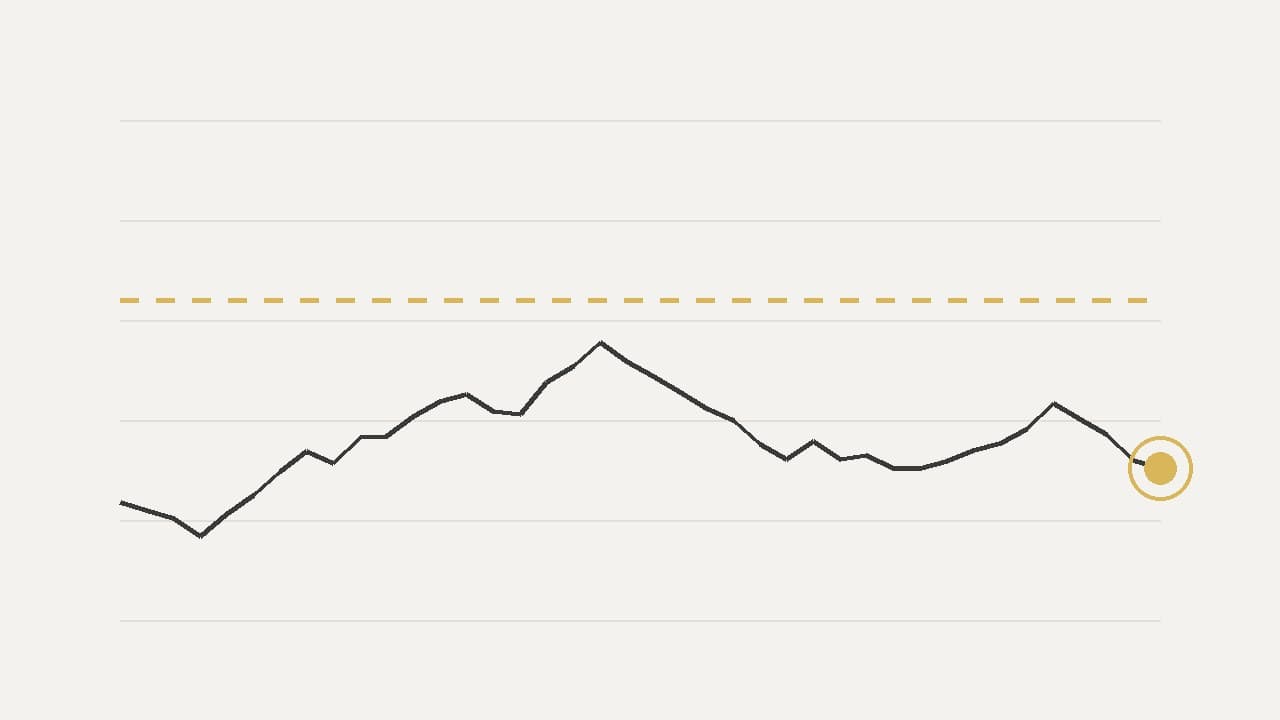
You can create a MetaTrader 5 alert for a Bid, Ask or Last price condition and choose a sound, email, file or push-notification action. Price-alert creation is documented in the desktop terminal; the mobile app receives push notifications configured by desktop, but its official Quotes help does not document creating a price alert directly on iPhone or Android.
Before you start
Make sure the symbol is visible in Market Watch and that the desktop terminal can receive quotes. Decide whether the condition should use Bid, Ask or Last. Last is relevant where the symbol supplies last-deal prices. The alert is checked against the symbol data selected for the alert, while a Time = alert does not depend on the symbol.
For a mobile push notification, open the mobile app's Messages page and note the MetaQuotes ID. In the desktop terminal, open Tools → Options → Notifications, enable push notifications and enter the MetaQuotes ID. The MetaQuotes desktop help lists the supported conditions and actions.
On desktop
- Open the
Toolboxwindow and select theAlertstab. - Open the context menu in the
Alertstab and choose the command to create an alert, or pressInsert. - Select the required symbol.
- Select a condition such as
Bid >,Bid <,Ask >,Ask <,Last >,Last <,Volume >,Volume <orTime =. - Enter the price, volume or local computer time at which the alert should trigger.
- Choose an action:
Sound,File,EmailorNotification. - Enter the source text or other action details requested by the alert window. Push-notification text is limited by the platform's alert field.
- Set the alert lifetime, repeat interval and maximum repetitions if those fields are available.
- Use
Testto check the selected action. ClickOKto save the alert. - Confirm that the alert is enabled in the
Alertstab.
You can create a quick chart alert by opening a chart context menu and clicking Alert at the chosen price. If the menu is above the current price, the command creates Bid > selected price; below the current price, it creates Bid < selected price. Chart-created alerts receive an automatic expiration based on the chart timeframe. You can drag the chart alert level if Disable dragging of trade levels is not enabled.
In the web terminal
- Open the web terminal's alert or notification control if it is provided in the current layout.
- Select the symbol and condition offered by the web terminal.
- Enter the level and confirm the alert.
The web terminal's official feature description focuses on trading, Market Watch and chart functions and does not document the full desktop Alerts tab workflow. If the web terminal does not display an alert control, create the alert in the desktop terminal and use its push-notification action.
On mobile
- Open the mobile app and go to
Messagesto find the device'sMetaQuotes ID. - On the desktop terminal, open
Tools→Options→Notifications. - Enable push notifications and enter the mobile MetaQuotes ID.
- In the desktop
Toolbox→Alertstab, set the symbol, price condition andNotificationaction. - Use
Testin the desktop alert window, then clickOK. - Check that the mobile app is permitted to receive notifications by the phone's operating-system settings.
The iPhone and Android apps use different navigation layouts, but both provide a Messages page and a MetaQuotes ID. The official mobile help documents push notifications sent from desktop alerts rather than a mobile control for creating price alerts.
What happens next
The desktop terminal checks the alert condition as quotes arrive and performs the selected action when it triggers. An alert does not place, modify or close an order. It is a notification only. A disabled alert remains in the list but does not trigger until it is enabled again.
An alert can be set to expire at a specified local-computer time, repeat after a chosen interval and stop after a maximum number of repetitions. The chart display shows an alert marker for chart-created alerts. The notification may contain a different price from the level if the quote moved between the triggering tick and the time you see the message.
Common problems
- No alert is received: the desktop terminal is closed, disconnected or not receiving quotes. Check the connection and keep the terminal running for the alert to be monitored.
- The wrong price side triggers the alert: the condition uses Bid, Ask or Last separately. Check the selected condition and the symbol's quote mode.
- No push message arrives: the MetaQuotes ID is wrong, notifications are disabled in
Optionsor blocked by the phone. Recheck the ID and notification permissions. - The chart alert disappears: its automatic expiration has passed. Create a new alert or use the
Alertstab to set a different lifetime. - The alert does not place an order: this is normal. MetaTrader alerts notify; they do not trade.
Related
Next: How to check a symbol's contract specification in MetaTrader 5.
If you cannot complete the step, contact support with the symbol, the order type and a screenshot of the message MetaTrader 5 shows.
Written by the Ultimo Research Desk and checked against our own contract specifications and client agreement before publication; reviewed again when those change. Educational only — nothing here is a recommendation to trade. Spotted an error? Tell us.