4 minute read · Ultimo Research Desk · Reviewed 5 Sept 2026
How to check a symbol's contract specification in MetaTrader 5
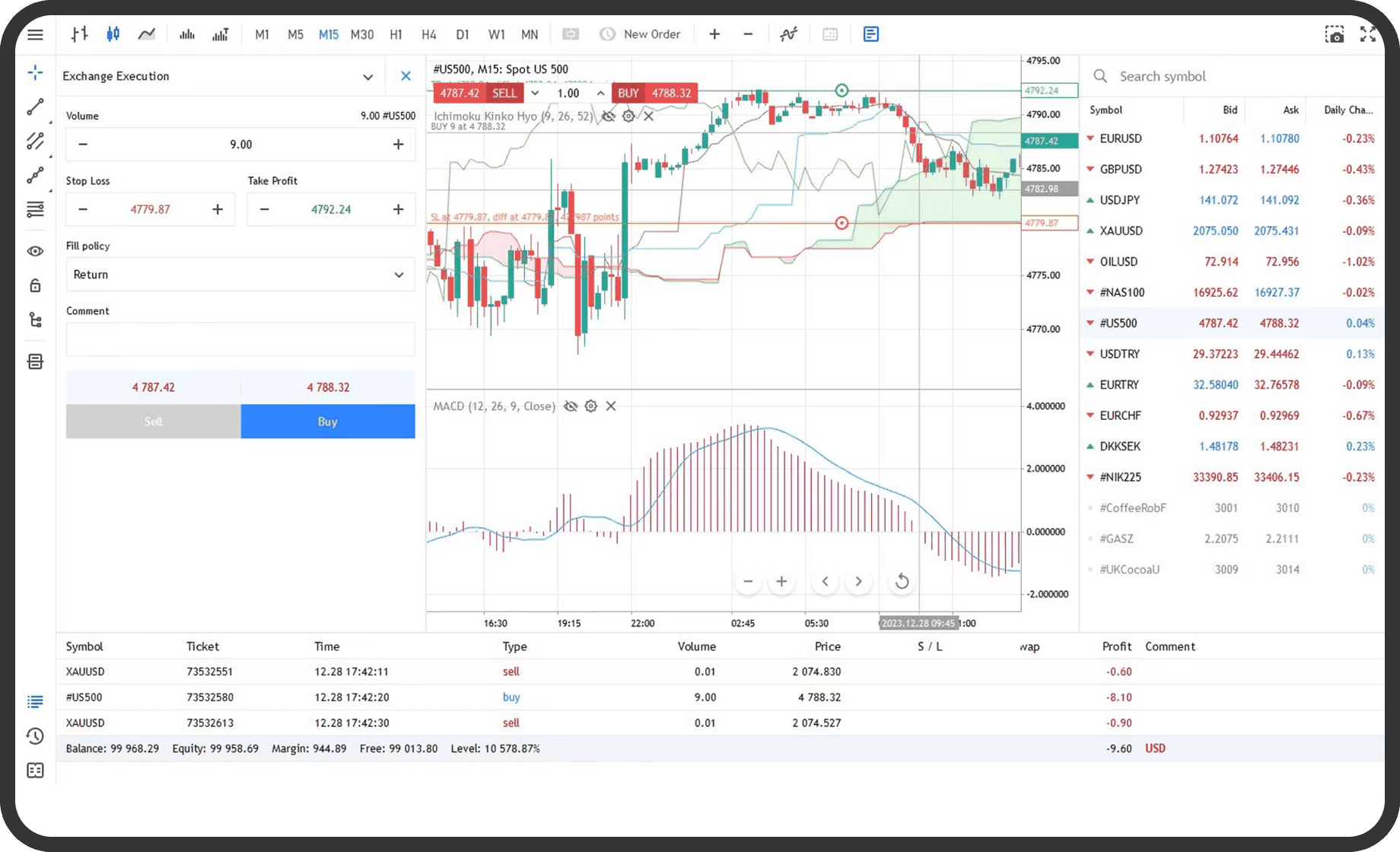
You can open a symbol's contract specification in MetaTrader 5 to check its trading terms, available order types, volume rules, execution mode, sessions and margin information. You need the symbol visible in Market Watch, Quotes or the platform's symbol list; the values shown are set for that symbol by the broker and can change.
Before you start
Identify the exact symbol rather than relying on a shortened name. Similar instruments can have different contract sizes, currencies, trading sessions and expiration terms. The specification is not a general rule for every symbol.
Check that the terminal is connected if you need current data. Some specifications include information such as a quote subscription or delay. The official Market Watch help explains how to display symbols, while the desktop and mobile help describe the fields shown in the specification window.
On desktop
- Open
Market Watch. - If the symbol is not listed, open the Market Watch context menu and choose
Symbols. Select the relevant group and make the symbol visible. - Right-click the symbol in
Market Watch. - Click
Specification. - Read the identification fields, including the symbol name, description and any exchange or category information.
- Check
Digits,Spread,Stops level,Contract size,Margin currency,Profit currency,Calculation,Tick sizeandTick value. - Check
Trade,Execution,Type of orders,Filling,Expiration,Minimal volume,Maximal volume,Volume stepandVolume limitbefore placing an order. - Check the trading sessions shown in the lower section of the window. For instruments with margin settings, review the relevant margin information.
The displayed specification is informational and broker-defined. Stops level indicates the price channel near the current price where Stop Loss, Take Profit and pending orders cannot be placed. Type of orders identifies whether market, limit, stop or stop-limit orders are enabled. Expiration identifies which pending-order lifetimes are available. Margin values may be indicative at the time the window opens, so reopen the specification when the help text says a recalculation is needed.
In the web terminal
- Open
Market Watch. - Select the symbol whose terms you need to check.
- Open the symbol's details, specification or properties control provided by the web terminal.
- Review the displayed order types, execution information, trading sessions and volume terms.
The web terminal includes Market Watch and symbol contract information, but the control placement can differ from desktop. Use the symbol's current details command rather than assuming the desktop right-click path is identical. If a term is not shown in the web view, check the same symbol in the desktop or mobile terminal.
On mobile
- Open
Quotes. On iPhone, use the bottom panel. On Android, open the side panel and selectQuotes. - Find the symbol. Use the search or add-symbol command if it is not listed.
- Tap the symbol once to open its context menu.
- Choose
Properties. - Review
Stops level,Contract size,Margin currency,Profit currency,Calculation,Tick size,Tick value,Execution,Type of orders,Expiration, volume limits and the displayed trading sessions.
On iPhone and Android, Properties is the documented mobile label. The navigation differs, but the key contract fields are similar. The app may omit fields that are not specified or not used for that symbol type.
What happens next
Use the specification to interpret the order window for the same symbol. It explains why the terminal may reject a volume, stop level, order type, filling policy or expiration condition. It also identifies whether the instrument is available for full trading, long-only trading, short-only trading, close-only trading or no trading.
The session section shows when quoting and trading are scheduled. An instrument can have different quoting and trading sessions. A specification does not reserve a price or guarantee that a pending order will be filled. It only shows the current terms supplied to the terminal for that symbol.
Common problems
Specificationis missing: the symbol is not selected in Market Watch, or the terminal is not showing that symbol. OpenSymbolsand make it visible.- The symbol cannot be traded: the
Tradefield is close-only, prohibited or outside its session. Check the trading sessions and current status. - An order type is missing: it is not included in
Type of ordersfor the symbol or is disabled by the current execution mode. Use an enabled order type. Invalid stops: the requested Stop Loss, Take Profit or pending level is insideStops level. Check the current Bid or Ask and the permitted distance.- The values do not match another terminal: the terminals may use different symbols, accounts, servers or updated specifications. Compare the exact symbol name and connection.
Related
Next: How to place a market order in MetaTrader 5. Our published contract specifications list the same terms for every symbol we quote.
If you cannot complete the step, contact support with the symbol, the order type and a screenshot of the message MetaTrader 5 shows.
Written by the Ultimo Research Desk and checked against our own contract specifications and client agreement before publication; reviewed again when those change. Educational only — nothing here is a recommendation to trade. Spotted an error? Tell us.