5 minute read · Ultimo Research Desk · Reviewed 5 Sept 2026
How to place a market order in MetaTrader 5
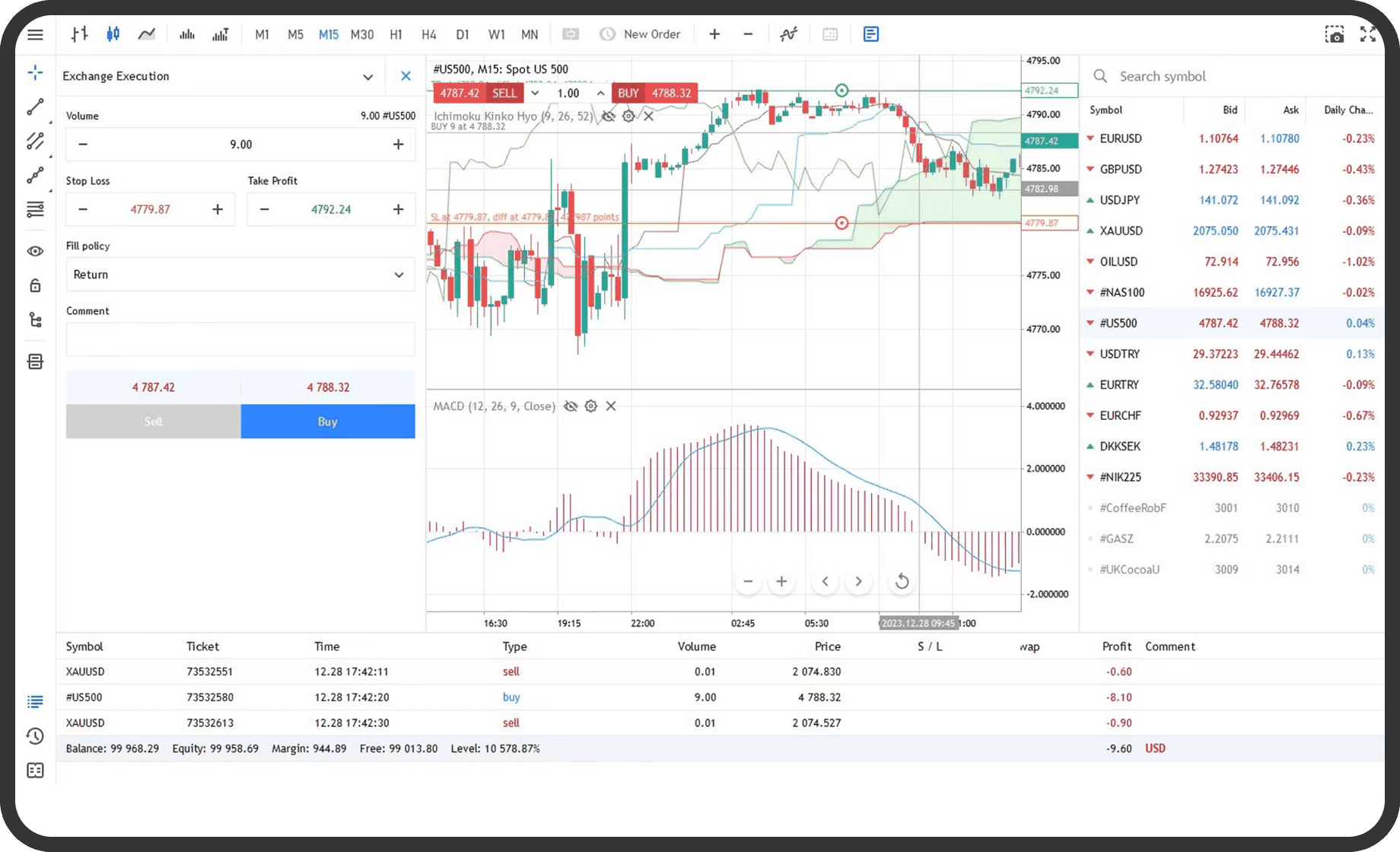
You can use MetaTrader 5 to send a market buy or sell order for a symbol and then check the resulting position. You need to be logged in, connected to the trade server and have the symbol visible in Market Watch or Quotes; the symbol's trading hours, execution mode and available order types are broker-dependent.
Before you start
Open Market Watch and confirm that the symbol is listed and receiving quotes. If it is missing, use the symbol list or Symbols command to make it visible. Check the symbol's Specification window from the Market Watch context menu. The fields Trade, Execution, Minimal volume, Maximal volume, Volume step, Filling and trading sessions determine what the terminal can send. The terminal may show Bid and Ask prices, but a broker's execution rules determine how the request is handled.
Your account can use netting or hedging. A netting account has one position per symbol. A hedging account can have several positions in the same symbol. This affects how a later deal changes the position, not how you open the order window. The official executing-trades help describes the order fields and the available ways to open the window.
On desktop
- In
Market Watch, select the symbol and open its context menu. ClickNew order. You can also pressF9, chooseNew orderfrom theToolsmenu, or clickNew orderon theStandardtoolbar. - In the order window, confirm the
Symbolfield. Select the market execution mode inTypeif it is not already selected. The wording and available execution modes depend on the symbol and broker configuration. - Enter the required
Volume. Use the volume format and step accepted by the symbol. The currentBidandAskare shown in the order window. - If required by the order window, enter
Stop LossandTake Profit. Leave either field at its null value if you are not setting that level with the order. Any minimum distance is checked by the trade server. - Add an optional
Commentif the field is available. - Check the direction and click
BuyorSell. A market buy is generally executed against the Ask and a market sell against the Bid, but the final execution details are returned by the server. - Wait for the result. If the request is accepted, the open position appears in the
Tradetab of theToolboxwindow and the order and deal appear inHistory.
In the web terminal
- Open the symbol in
Market Watchand use the web terminal'sNew Ordercontrol or the symbol context command. - Select the market order type, enter the permitted volume and review any available stop fields.
- Select
BuyorSelland confirm the result in the trading area.
The web terminal supports market and pending orders, but its layout can differ from the desktop terminal. The broker's enabled order types, execution mode and trading sessions still control what is available. If the web terminal does not show a field, it is not available through that current order workflow.
On mobile
- Open
Quoteson iPhone or Android and locate the symbol. On iPhone,Quotesis in the bottom panel. On Android, open the side panel and tapQuotes. - Tap the symbol to open its context menu, then choose
Trade, or use the trading command available when you swipe the symbol row on iPhone. - In the trading screen, choose the market operation, enter the volume and review the displayed price and optional stop fields.
- Tap
BuyorSelland confirm the result in theTradetab.
The iPhone and Android layouts differ. Both support market operations, but the exact position of the navigation panel and quick commands follows the operating system's app layout. Mobile also offers one-click trading from a chart when that feature is enabled.
What happens next
An accepted market order normally creates a position immediately, although one order can produce more than one deal. In the desktop Trade tab, the position row shows the symbol, type, volume, open price, current price, Stop Loss, Take Profit, swap and profit fields where applicable. In mobile, tap the position row for its details. On a netting account, a new deal can increase, reduce, close or reverse the existing position. On a hedging account, it can create a separate position.
The History tab records the order and executed deal. An order is the instruction sent to the server. A deal is the executed transaction. Check the ticket, volume and execution price in the history record to confirm what was accepted.
Common problems
Invalid volume: the volume is below the minimum, above the maximum or not aligned with the symbol's volume step. CheckSpecificationand correct the volume.Invalid stops: a Stop Loss or Take Profit is inside the minimum permitted distance or on the wrong side of the current price. CheckSpecificationand the Bid/Ask used for the position.Market is closed: the symbol is outside its trading session or trading is currently disabled. Check the symbol's sessions andTradefield inSpecification.- No
BuyorSellcontrol: the account is disconnected, the symbol is close-only or trading is not permitted. Check the connection andSpecification. - The result differs from the displayed quote: execution is based on the available price and the symbol's execution mode. Check the deal price in
History.
Related
Next: How to set a stop loss and take profit in MetaTrader 5. If you do not yet have the platform, download MetaTrader 5.
If you cannot complete the step, contact support with the symbol, the order type and a screenshot of the message MetaTrader 5 shows.
Written by the Ultimo Research Desk and checked against our own contract specifications and client agreement before publication; reviewed again when those change. Educational only — nothing here is a recommendation to trade. Spotted an error? Tell us.