5 minute read · Ultimo Research Desk · Reviewed 5 Sept 2026
How to use pending orders in MetaTrader 5
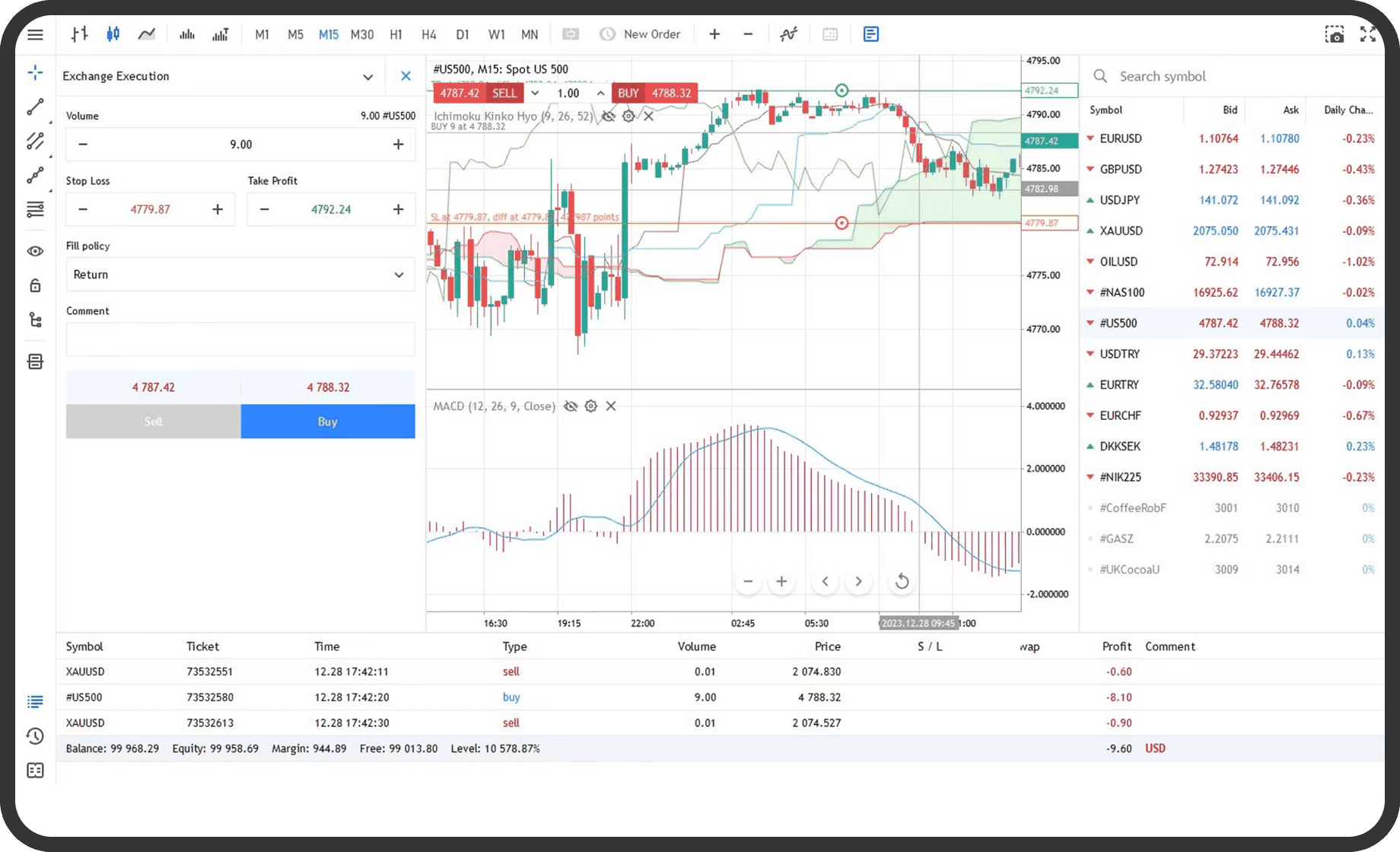
You can use a pending order in MetaTrader 5 to instruct the server to buy or sell a symbol later at a defined trigger condition. You need a logged-in terminal, the symbol in Market Watch or Quotes, and a configuration that permits the selected order type, volume, filling policy and expiration.
Before you start
Open the symbol's Specification window and check Orders, Expiration, Filling, Stops level, volume limits and trading sessions. The available values are set by the broker and can differ between symbols. The current Bid and Ask also matter. On some exchange instruments, a trigger can use Last, while the actual buy or sell uses the market's available prices.
MetaTrader 5 supports Buy Limit, Sell Limit, Buy Stop, Sell Stop, Buy Stop Limit and Sell Stop Limit. A limit order is entered at its specified price or better. A stop order becomes a market order when triggered, so its execution price can be worse than its entered level. A Stop Limit order places a limit order only after its stop price is reached. See Placing Pending Orders.
On desktop
- Select the symbol in
Market Watchand clickNew orderin its context menu. Alternatively, pressF9, useTools→New order, or clickNew orderon theStandardtoolbar. - Select
Pending orderin theTypefield. - Select the required order type:
Buy Limit,Sell Limit,Buy Stop,Sell Stop,Buy Stop LimitorSell Stop Limit. - Enter the
Volumeusing the permitted minimum, maximum and volume step. - Enter
Price, which is the trigger price for a normal limit or stop order. For a Stop Limit order, enter the stop trigger inPriceand the limit-order price inStop Limit. - Enter
Stop LossandTake Profitif those fields are available and required for the position that will open. - Select an
Expirationcondition. Available choices can includeGood Till Canceled,TodayandSpecified, depending on the server. IfSpecifiedis selected, enter the expiration date. - Review
Fill policyandCommentif those fields are available. The server may disable some choices. - Click
Place. The button remains inactive when a parameter is invalid.
To change a pending order, open its context menu in the Trade tab and choose Modify or delete, then click Change after editing the permitted fields. To remove it, use the modification window's Delete command. A pending order can also be cancelled automatically at its expiration.
In the web terminal
- Open the symbol in
Market Watchand choose the web terminal'sNew Ordercommand. - Select the pending-order workflow and choose the order type offered for the symbol.
- Enter the volume, trigger price, any
Stop LossorTake Profit, and the available expiration and filling settings. - Confirm
Placeand check the order list.
The web terminal supports limit, stop and stop-limit orders, but its control placement can differ from desktop. If a field or type is not shown, it is not enabled for that symbol.
On mobile
- Open
Quotesand select the symbol. On iPhone, use the bottom panel. On Android, open the side panel and tapQuotes. - Tap
Trade, or open the symbol chart and tap the pending-order control. - In the order dialog, choose the order type, enter the volume and set the trigger price.
- Add
SLandTPif required, then expand the panel if you need to enter the other available order fields. - Confirm the order and check it in the
Tradetab.
On iPhone, the chart workflow lets you tap Pending Order, drag the level, and change the order type from the displayed Buy Limit or Sell Limit control. Android offers the same trading functions with different navigation. The exact order types remain symbol-dependent.
What happens next
The unfilled order appears in the Trade tab with its trigger price, current price, volume, Stop Loss, Take Profit, state and expiration where applicable. When a limit condition is met, the order is executed at the specified price or better, but execution is not guaranteed. When a stop condition is met, the terminal sends a market-order request. The resulting deal can be filled at a worse price than the stop level.
For a Stop Limit order, reaching the stop price places the limit order. That limit order can remain unfilled if the market does not offer its specified price or better. If a pending order opens a position, its attached Stop Loss and Take Profit apply to that position.
Common problems
Invalid stops: the trigger or attached stop level is too close to the current price or on the wrong side. CheckSpecificationand the current Bid or Ask.Invalid volume: the volume is outside the symbol's limits or does not match the volume step. Correct it usingMinimal volume,Maximal volumeandVolume step.- The order type is missing: the broker has not enabled it for the symbol, or the current execution mode does not support it. Check
OrdersandExecutioninSpecification. - The order expired or disappeared: its
Expirationwas reached, or the symbol's day-validity rules removed it. Check the order inHistory. - A stop order filled away from its level: a stop triggers a market request, so the available execution price can be worse than the entered stop price.
Related
Next: How to set a stop loss and take profit in MetaTrader 5. What each order type promises, and what it cannot, is in the MT5 order types guide.
If you cannot complete the step, contact support with the symbol, the order type and a screenshot of the message MetaTrader 5 shows.
Written by the Ultimo Research Desk and checked against our own contract specifications and client agreement before publication; reviewed again when those change. Educational only — nothing here is a recommendation to trade. Spotted an error? Tell us.