5 minute read · Ultimo Research Desk · Reviewed 5 Sept 2026
How to set a stop loss and take profit in MetaTrader 5
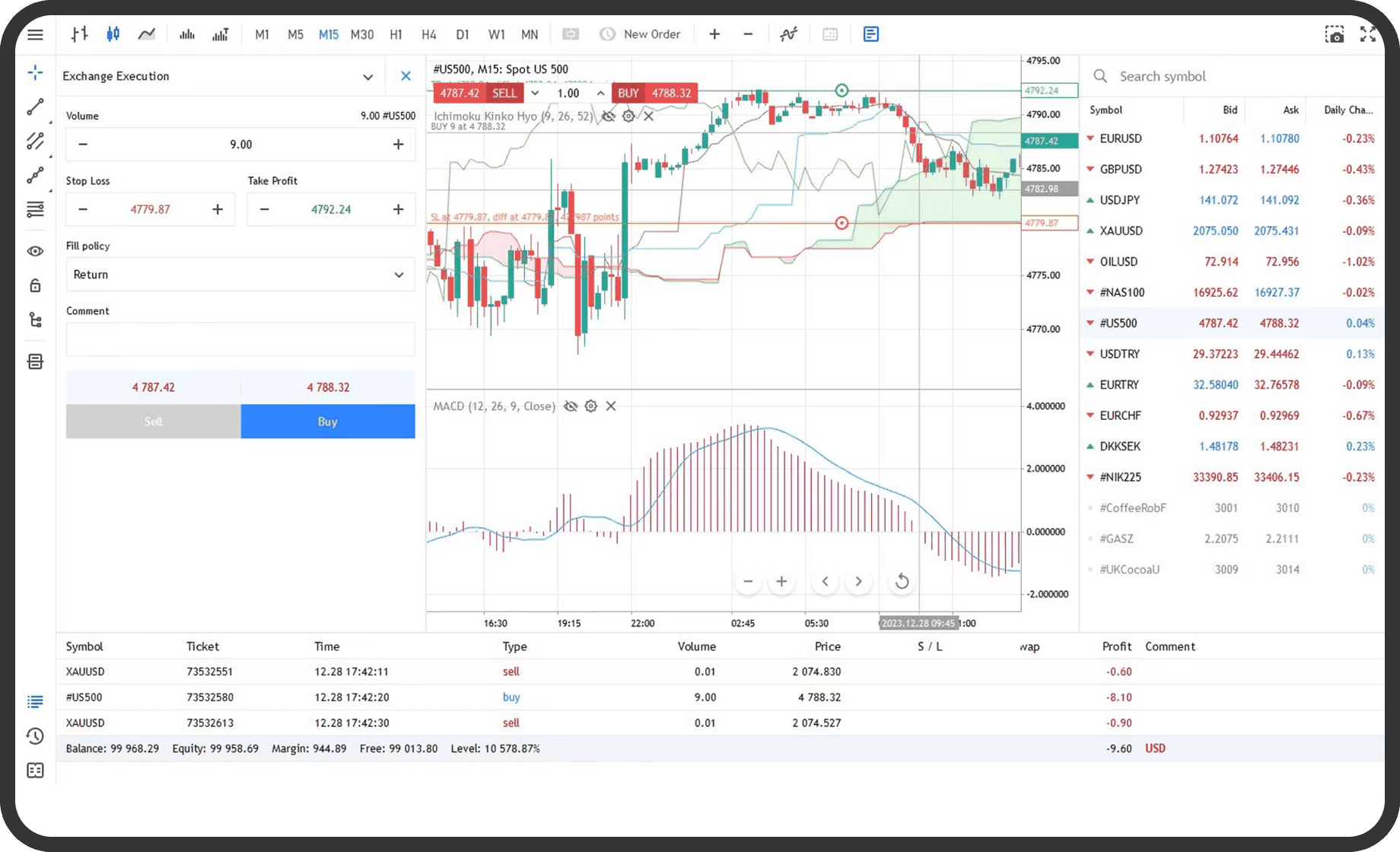
You can add, change or remove Stop Loss and Take Profit levels on an open position or attach them to a pending order in MetaTrader 5. You need a logged-in terminal, a symbol with an open position or pending order, and levels that meet the broker's distance, price and trading-session rules.
Before you start
Open the symbol's Specification window and check Stops level, Digits, Trade, Execution and trading sessions. Stops level defines the price channel near the current price where Stop Loss, Take Profit and pending orders cannot be placed. The value is set for the symbol and can differ between instruments. The server also checks whether the level is on the permitted side of the position.
For a long position, a Stop Loss is below the current Bid and a Take Profit is above the current Bid. For a short position, a Stop Loss is above the current Ask and a Take Profit is below the current Ask. The price used for checking can differ for exchange instruments. MetaQuotes documents these rules in Executing Trades.
On desktop
- Open the
Toolboxwindow and select theTradetab. - Find the position or pending order. For a position, open its context menu and choose
Modify or delete. - In the modification window, enter the required value in
Stop Loss,Take Profit, or both. For a pending order, the order price andExpirationmay also be shown. - Check that the levels are correctly placed relative to the position direction and current Bid or Ask.
- Click
ModifyorChange, depending on the operation shown by the window. - Read the confirmation in the terminal and check the position row in
Trade. The Stop Loss and Take Profit columns should contain the new levels.
You can also modify visible trade levels on a chart if Show trade levels is enabled in platform settings. Drag the relevant level, review the modification window and confirm the change. The server still validates the request.
When creating a new order, enter the levels in the Stop Loss and Take Profit fields of the order window before clicking Buy, Sell or Place. For a pending order, these levels are intended for the position that opens when the order is filled; they do not close an unfilled pending order.
In the web terminal
- Open the position or order list and select the relevant position or pending order.
- Use the available
Modifyor equivalent context command. - Enter
Stop Loss,Take Profit, or both, then confirm the change. - Check the updated levels in the position or order details.
The web terminal supports Stop Loss and Take Profit for open positions and supports the relevant trade operations, but the location of the modification control depends on the web layout. If a field or order type is absent, the current symbol or broker configuration does not make it available in that workflow.
On mobile
- Open the
Tradetab. On iPhone it is in the bottom panel. On Android, open the side panel and selectTrade. - Tap the position or order, or swipe its row from right to left to open the commands.
- For a position, choose
Modify Position. For an order, choose the modify command shown for that order. - Enter the Stop Loss and Take Profit values in the trade dialog.
- Confirm the modification and return to
Tradeto check the values.
The iPhone and Android command menus use the same functions but have different navigation layouts. The mobile app also allows Stop Loss and Take Profit to be added while configuring a pending order from a chart.
What happens next
Stop Loss and Take Profit are server-side levels once accepted. If the relevant price reaches a level, the platform requests the associated position closure according to the symbol's trading and execution rules. A position may close at a price different from the displayed level where the instrument and market conditions permit that outcome. If the activation cannot be executed at that tick, the order is checked again on a later matching tick.
On a netting account, adding or reversing a position can replace its existing Stop Loss and Take Profit with the values from the latest order. A zero value removes a level. A partial close does not change the levels, while a full close removes them with the position. The corresponding position rules also apply on hedging accounts, subject to the selected position.
Common problems
Invalid stops: the level is inside the broker's minimum stop distance or is on the wrong side of the current Bid or Ask. CheckSpecificationand enter a permitted level.Modifyis inactive: a required field is invalid, the symbol is not tradable or the terminal is disconnected. Correct the fields and check the connection.- The line is not visible on the chart:
Show trade levelsmay be disabled, or the chart may be for another symbol. Enable the setting and open the matching chart. - The level changed after another deal: on a netting account, an added or reversing deal can replace the previous levels. Check the latest position row and the order history.
- The position did not close at exactly the displayed level: the price used for activation and execution depends on the position direction, quote type and available market price.
Related
Next: How to set and understand a trailing stop in MetaTrader 5. For how far from the price a stop should sit in current conditions, see the ATR guide.
If you cannot complete the step, contact support with the symbol, the order type and a screenshot of the message MetaTrader 5 shows.
Written by the Ultimo Research Desk and checked against our own contract specifications and client agreement before publication; reviewed again when those change. Educational only — nothing here is a recommendation to trade. Spotted an error? Tell us.