4 minute read · Ultimo Research Desk · Reviewed 5 Sept 2026
How to set and understand a trailing stop in MetaTrader 5
You can use a trailing stop in MetaTrader 5 to move a position's Stop Loss as the position becomes more favourable, while leaving it unchanged when price moves back. The important limitation is that MetaTrader runs the trailing-stop logic in the client terminal, not on the broker's server, so it stops updating when that terminal is closed; an accepted Stop Loss already placed on the server remains active.
Before you start
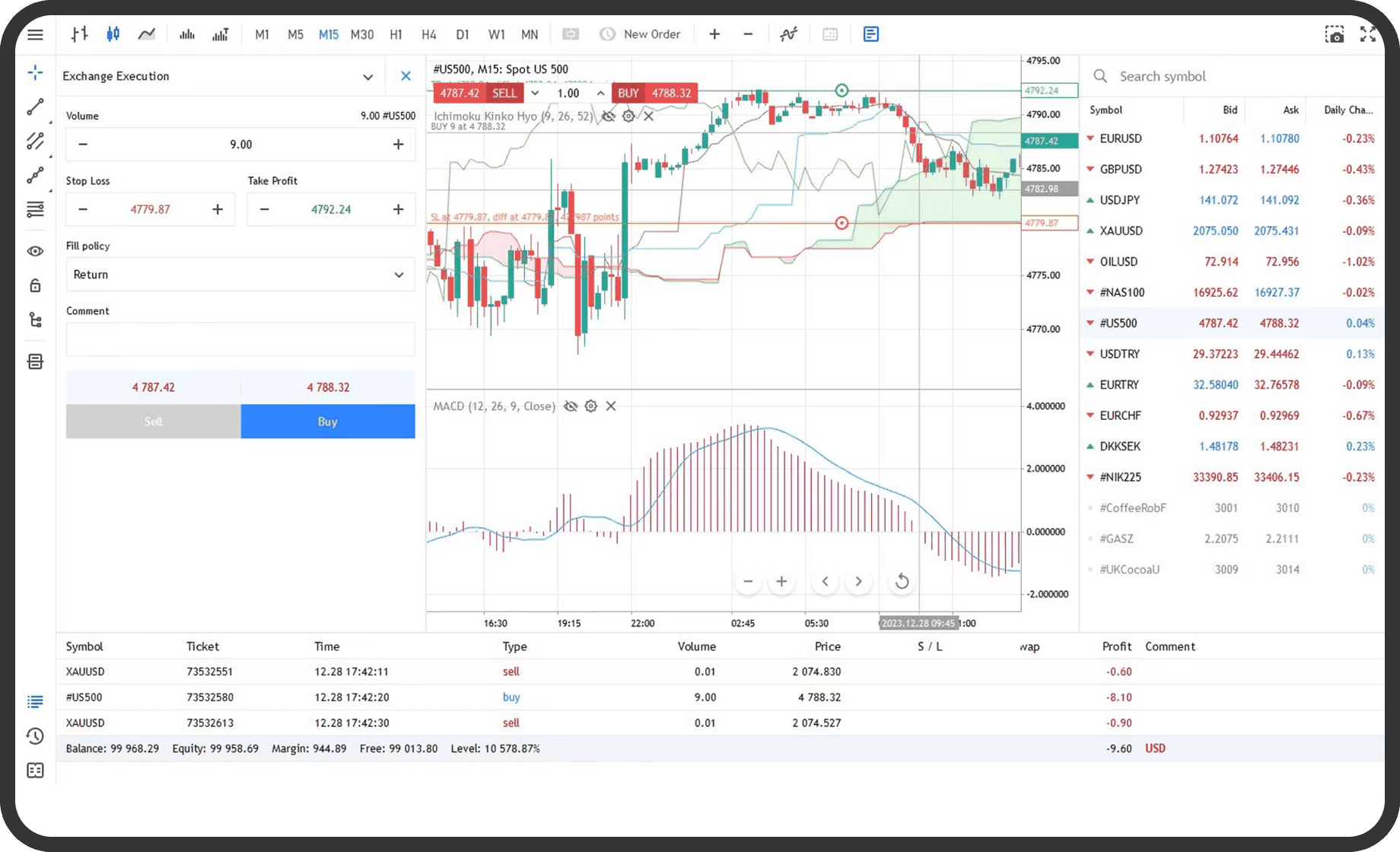
You need an open position or, on desktop, a pending order that supports the terminal's trailing-stop command. Open the symbol's Specification window and check Trade, Execution, Stops level, trading sessions and the quote type used for the instrument. The minimum permitted distance and the price side used for activation are broker-dependent.
A trailing stop is a rule applied by the terminal. It is not a separate server-side order that continues to recalculate after the platform closes. MetaQuotes describes this distinction in its trading help. Stop Loss and Take Profit levels accepted with a position are stored and processed on the broker's server.
On desktop
- Open the
Toolboxwindow and select theTradetab. - Open the context menu for the position and choose
Trailing Stop. - Select one of the displayed distance values. The distance is measured between the Stop Loss and the current price.
- To enter another distance, choose
Set custom leveland enter the permitted value. - Check the position row and chart, if trade levels are shown. The existing Stop Loss can be followed by the trailing stop as price moves in the favourable direction.
The terminal checks new quotes. When the position's profit reaches at least the selected distance, it sends a command to set the Stop Loss at that distance from the current price. If the favourable price continues, the terminal can move the Stop Loss again. If price does not move further in that direction, the level is not moved back.
To disable one trailing stop, open the same menu and choose None. To disable all trailing stops, use Delete All if it is shown. Only one trailing stop can be set for each open position or pending order. The terminal can also follow an existing Stop Loss as price moves, subject to the symbol's permitted levels.
In the web terminal
The web terminal does not provide a trailing-stop command. Set or move the Stop Loss manually from the position's modify command, or run the trailing stop from the desktop terminal. A Stop Loss that has already been accepted remains a server-side level regardless of which terminal placed it.
On mobile
- Open the
Tradetab. On iPhone it is in the bottom panel. On Android, open the side panel and chooseTrade. - Tap the position or swipe its row from right to left to open the commands.
- Use the modification command to set or change a Stop Loss if the mobile workflow offers the required field.
- If a trailing-stop command is not shown, manage the trailing stop from the desktop or web terminal, where MetaQuotes documents the trailing-stop control.
The mobile app can display and modify the position's Stop Loss, but the official iPhone and Android help does not document the desktop Trailing Stop menu as a mobile command. A Stop Loss already set remains on the server even if the desktop terminal that created the trailing stop is closed.
What happens next
The trailing stop does nothing until the position is profitable by at least the selected distance. It then sets or moves a Stop Loss. The level can move in the favourable direction but does not move away from the current price when the market reverses. When the Stop Loss is reached, the position is closed under the symbol's execution rules.
The terminal checks quotes and updates the level from the running client. If the terminal is closed, disconnected or unable to receive quotes, the trailing stop does not update. If an accepted Stop Loss already exists, it remains stored on the server and can still trigger. The desktop terminal also limits repeated trailing-stop processing for a position, so a level need not move on every individual quote.
Common problems
- The Stop Loss does not move: the selected distance has not been reached, the price has moved against the position or the terminal is closed or disconnected. Check the terminal connection and current position result.
- The trailing-stop option is missing: no eligible position is selected, the operation is not available for the account or the symbol is not tradable. Check
TradeandSpecification. Invalid stops: the calculated Stop Loss is inside the symbol's permitted distance. CheckStops leveland the current Bid or Ask.- The Stop Loss remains after disabling trailing: disabling the trailing rule does not delete an already placed Stop Loss. Modify the position separately if you need to remove it.
- The position closed while the terminal was open: the accepted Stop Loss was reached. Confirm the trigger and execution details in
History.
Related
Next: How to set a stop loss and take profit in MetaTrader 5. The MT5 order types guide explains why the trailing stop behaves differently from the other orders.
If you cannot complete the step, contact support with the symbol, the order type and a screenshot of the message MetaTrader 5 shows.
Written by the Ultimo Research Desk and checked against our own contract specifications and client agreement before publication; reviewed again when those change. Educational only — nothing here is a recommendation to trade. Spotted an error? Tell us.